Use approval workflows in Business Central
Business Central’s approval workflow holds a document or master data change until the approval request is granted or cancelled. While the request is active, the record cannot be posted, released, or modified. Standard templates cover purchase orders, sales documents, vendor and customer master records, journal batches and lines, and item card changes.
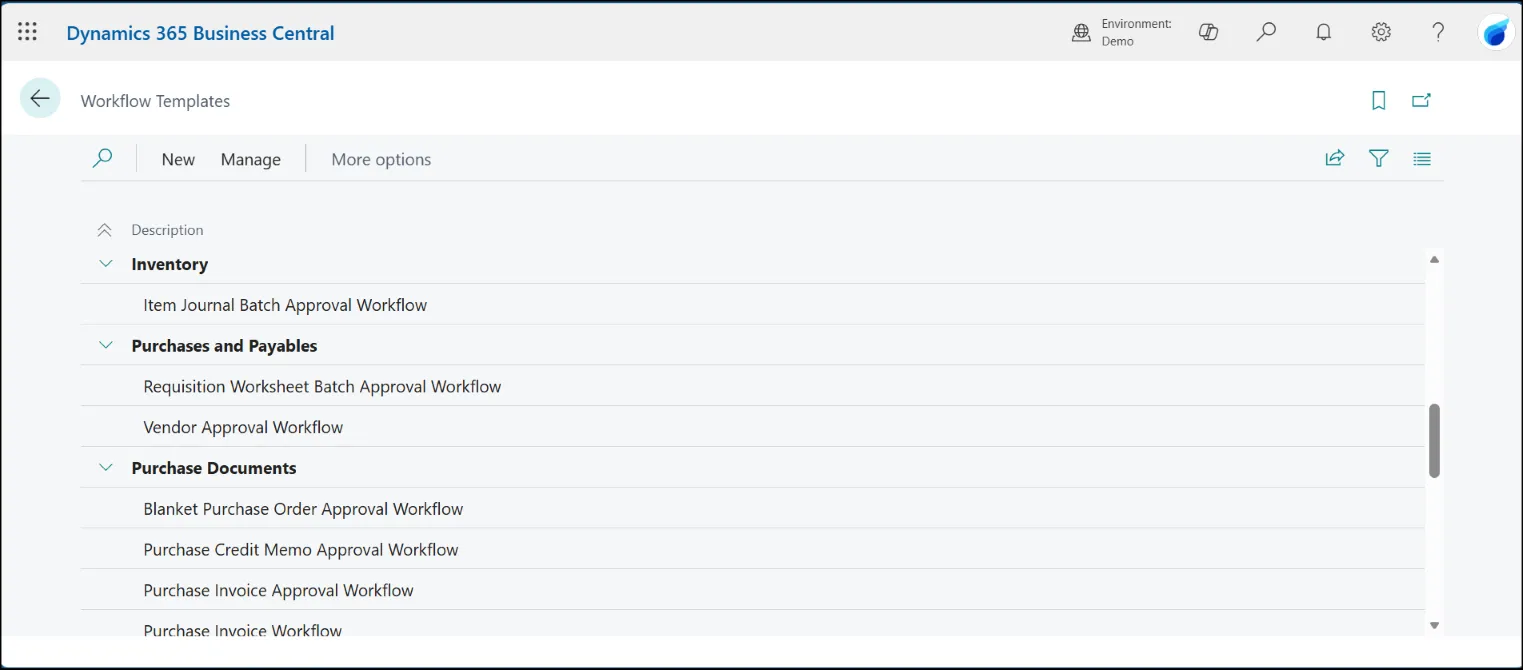
Setup involves two pages. The Approval User Setup page defines who approves for whom and at what limits. The Workflows page is where you build the workflow from a Microsoft template or from scratch.
What are approval workflows in Business Central, and when do you need them?
An approval workflow is a sequence of events and responses. An event triggers the workflow. A response defines what happens next.
Use an approval workflow when an unverified action can post to the ledger or commit money. A purchase order going to a vendor without a second check is one example. A vendor bank account change made without a controller sign-off is another.
Workflows run sequentially or in parallel. Sequential routes approver 1 to approver 2 only after approver 1 has approved. Parallel sends the request to all approvers at the same time and completes only when every approver has responded. Sequential fits delegation by amount tiers. Parallel fits an independent sign-off from two functions on the same record.
Approval workflows and permission set design in Business Central are different controls. Permissions decide what a user can do. Workflows decide whether a permitted action needs review by another user.
Setting up a purchase or sales approval workflow
Setup has three stages.
Approval User Setup. Every user in a workflow needs a line. You set their approver, their substitute, and their approval limits for sales and purchases in local currency. The substitute is the field most teams underuse. When the named approver is on leave during the month-end and a purchase order is awaiting their approval, the substitute prevents the workflow from blocking the close.
The workflow. On the Workflows page, choose New Workflow from Template. For a purchase order approval, pick the Purchase Order Approval Workflow template. Microsoft template codes start with MS-, for example, MS-PIW. The template comes with standard events and responses. You can keep the defaults or adapt the approver chain, add conditions, and insert response steps such as restricting the record from posting until approval is granted.
Enable. The Enabled toggle on the workflow header turns it on. Until you toggle it, the workflow exists but does not run. An enabled workflow with wrong conditions will hold every matching document and block users from working, so test before enabling.
Test with two users. Sign in as the requester, send a purchase order for approval, then sign in as the approver and find the request on the Requests to Approve page. The document status should move from Open to Pending Approval to Released. If it does not, conditions or response steps need correction before go-live.
How approval notifications work and how users respond
Notifications inform a user of a pending action. Business Central supports two native channels: email and internal notes. Email requires the Email setup page to be configured, with a sender account and scenarios mapped. Internal notes appear in the user’s Role Center under the My Notifications cue, and on the Requests to Approve page.
Notifications go out through the job queue. If the job queue is not running, approval notifications stop, although the workflow continues to log requests. The job queue must be set to start automatically as part of the deployment.
When the approver receives the request, they go to Requests to Approve, select the line, and choose Approve, Reject, or Delegate. Delegation routes the request to a substitute (the named substitute first, then the direct approver, then the approval administrator). The requester can also cancel their own approval request, which reopens the record for editing or for a new request.
Business Central 2023 Wave 1 added Power Automate approval templates accessible from the Workflows page. The templates move approvals from Business Central into Teams and Outlook. The Power Automate flow also appears in the BC Workflows list once created. For users who work mainly in Teams or Outlook, the Power Automate path delivers approvals to their working tool rather than only inside BC.
The limits of Business Central’s native approval workflows
Fixed event and response lists. The events Microsoft provide cover most document-level scenarios, but a new trigger requires an AL extension or a move to Power Automate. If a control requirement is “approve when a user applies a special discount to a customer’s order”, and the event list does not expose payment terms as a triggering field, the native workflow cannot cover it.
No native Teams or Outlook approvals. Native notifications are limited to email and internal notes. There is no native Teams approval card and no native Outlook approval action. Users who work outside Business Central for most of the day often miss approvals because the native channels do not reach them.
No time-based escalation or amount-tiered routing. You can set amount limits on the Approval User Setup page so a user with a £10k purchase limit cannot approve a £15k purchase. Routing a £15k purchase to a different approver based on the amount alone requires workflow user group configuration that becomes complex as the approver chain grows. Time-based escalations are limited in the native workflow and require a Power Automate or a third-party extension.
The native workflow is sufficient for organisations whose approval needs match standard BC events and whose approvers work inside BC. Once requirements exceed those, the next step is Power Automate. Microsoft added Power Automate templates in Business Central 2023 Wave 1 for the same reason.
For finance teams using approval workflows as a segregation of duties compensating control in BC, these limits and the Power Automate option need to be designed in at the start of the implementation, not added later.
If you are planning a Business Central go-live and need approvers and requesters ready from day one, see our employee training plan template.
Sources
- Microsoft Learn: Use approval workflows
- Microsoft Learn: Walkthrough: Setting up and using a purchase approval workflow
- Microsoft Learn: Approve or reject documents in workflows
- Microsoft Learn: Setting up approval workflow notifications
- Yun Zhu, Dynamics 365 Lab: BC22 New approval workflow experience with Power Automate templates